
Four themes
Light, Dark, Graphite and High contrast. A single sidebar, movable tabs and keyboard menus keep the workspace familiar.
Write queries through BI Publisher. Look up tables and relationships, then filter, compare and export your results.
Get FUSE for WindowsFree · RC30 build 2 portable
Preview
The app update is complete. The workspace and setup shown below are not yet in public downloads.
A contextual sidebar and compact controls leave more room for your SQL and results.
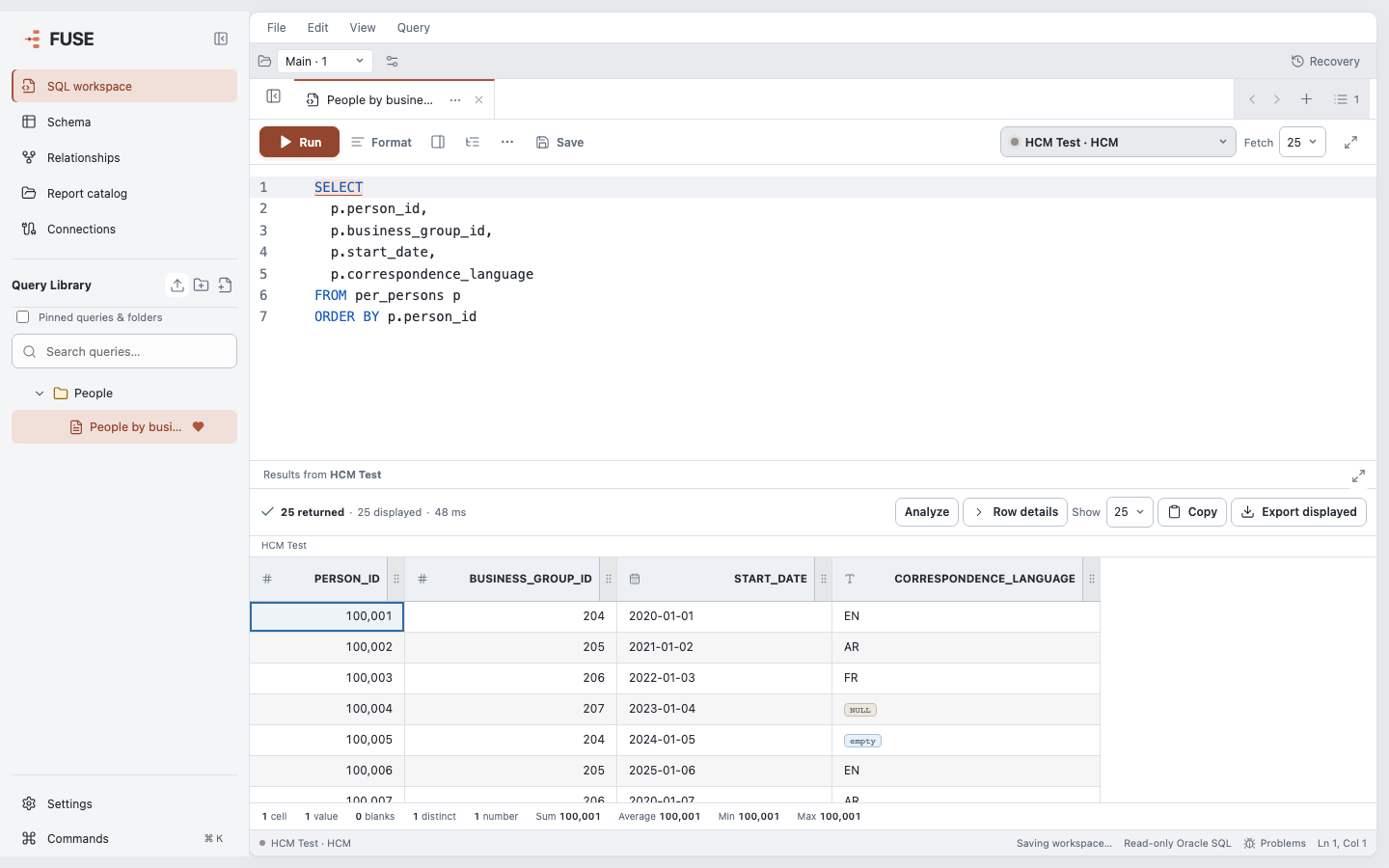
Light, Dark, Graphite and High contrast. A single sidebar, movable tabs and keyboard menus keep the workspace familiar.
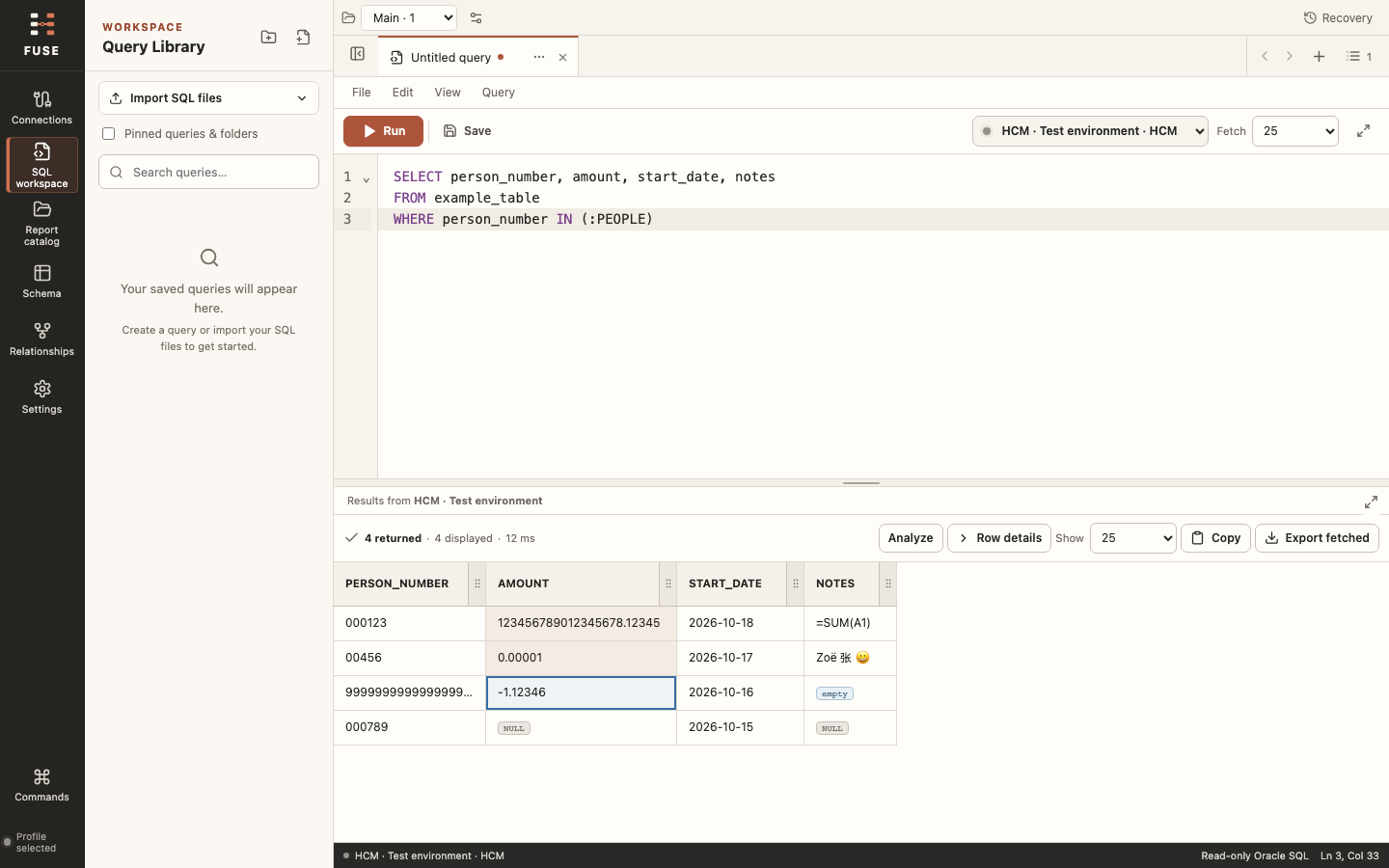
Enter text, numbers, dates or lists of up to 1,000 values. FUSE validates them before inserting Oracle literals; history keeps the placeholders.
Repeated launches return to your workspace. Shutdown waits for pending edits to save, with recovery for interrupted sessions.
In the upgrade
Use FUSE with a local stdio MCP client. Codex and Claude Code each have a single setup button.
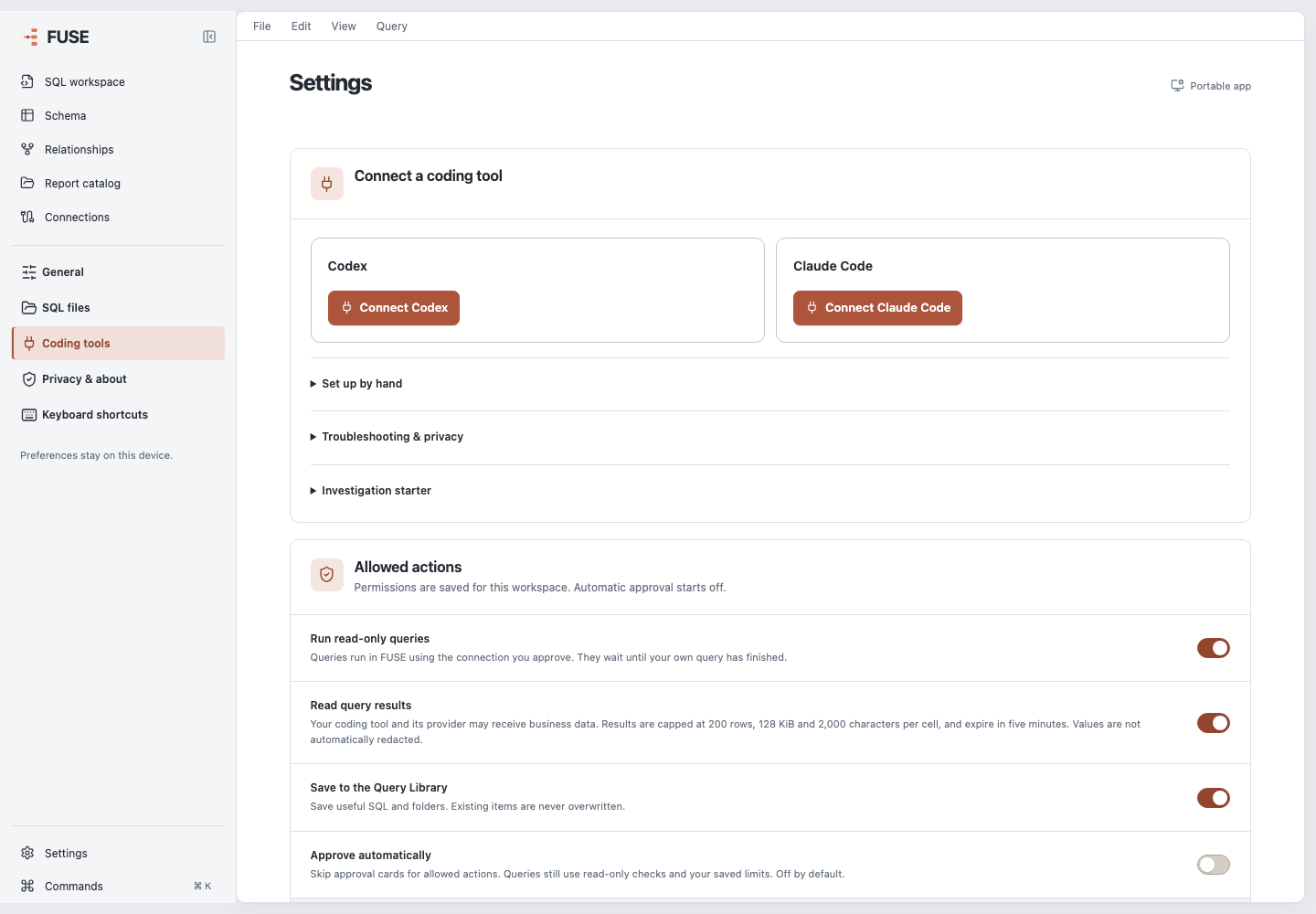
Open Settings → Coding tools. Choose Connect Codex or Connect Claude Code. FUSE checks its helper and saves only its own configuration entry.
Reopen or reload a running coding tool to load FUSE. Other local stdio MCP clients can use Set up by hand.
Check the SQL and connection before approving a run. Permissions are saved; automatic approval starts off. Coding-tool queries wait behind your own work.
Shared results can reach your coding tool and its provider without automatic redaction. Choose the actions and sharing you allow. Privacy and permissions
In the upgrade
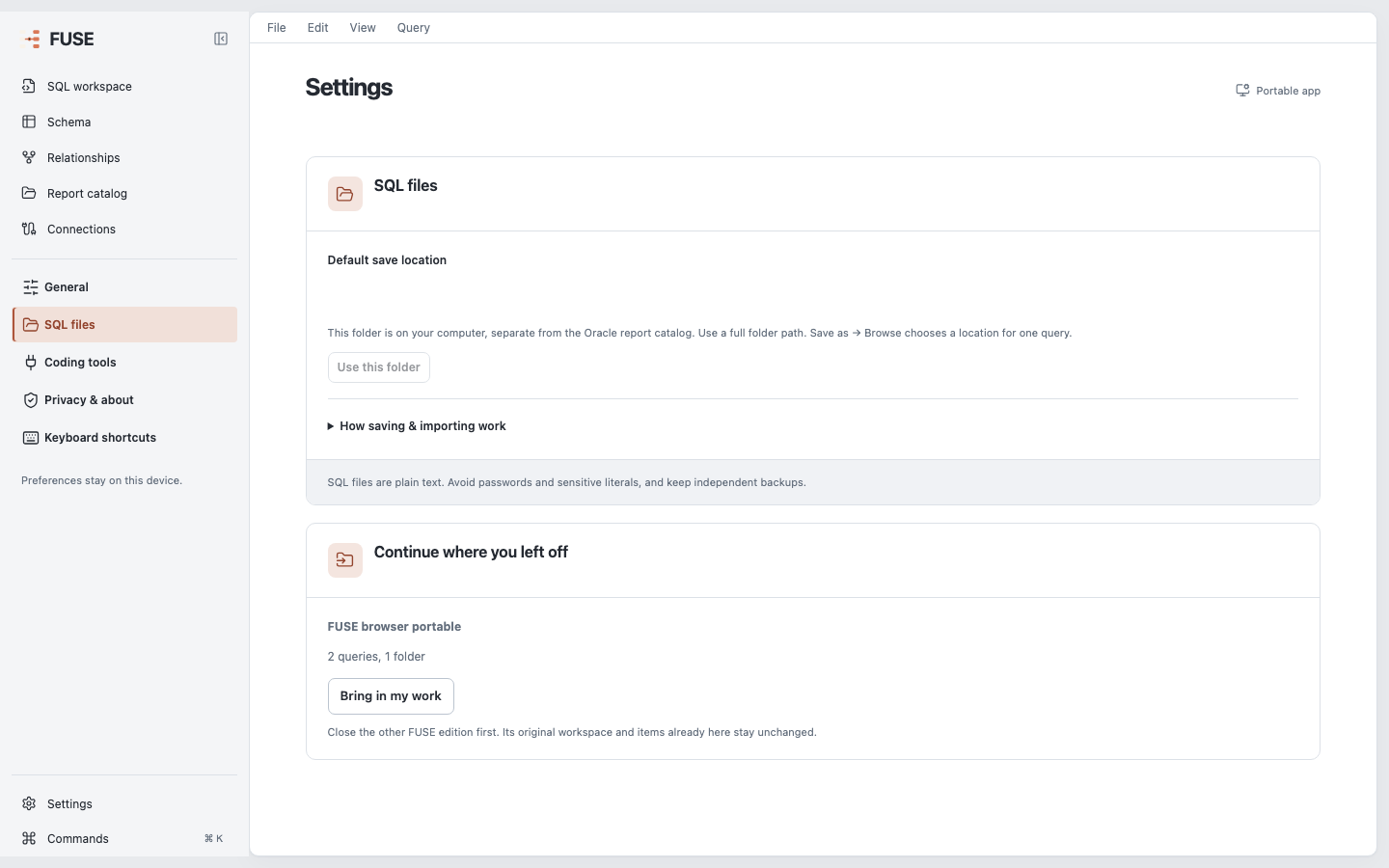
Import supported queries, folders and connections from another FUSE edition. Existing items and the original workspace stay intact.
Close the earlier edition first. Native vault passwords need to be entered again.
FUSE uses BI Publisher and the Oracle access already granted to your account.
Browse tables and columns across HCM, Financials, Common, Procurement and Supply Chain. Check linked Oracle sources and review notes before using a join. Unverified matches stay separate.
Each run accepts one SELECT or WITH statement. Direct data-changing SQL is blocked; custom functions can still have side effects. Use least-privileged access in an authorised non-production environment.
Filters, statistics and comparisons use rows already fetched. Export the current view, all fetched rows or selected cells. FUSE has no usage tracking or built-in model.
The public portable is RC30 build 2. Standalone EXE and MSI installers remain on RC28; the Microsoft Store has its own version. The October upgrade preview does not change these downloads. View downloads and release details.
No public macOS download is available. The October upgrade has been checked in a local Apple-silicon app, which is unsigned and not notarized.
No. In the October upgrade, the connect button checks FUSE locally and saves its configuration. It does not send a prompt, run SQL or change action permissions. Reopen or reload your coding client afterward; local setup checks do not confirm that the client has loaded FUSE.
Yes, with a client that can launch a local stdio MCP server. The upgrade keeps manual configuration under Set up by hand. A remote-only MCP client cannot launch FUSE's local companion. Your client's separate file permissions and provider policies still apply.
FUSE can create missing BI Publisher report objects in your chosen folder, with the environment owner's permission. It does not overwrite existing models or grant additional Oracle access. Follow the setup instructions for your downloaded edition.
Free · Windows · RC30 build 2 portable